


Black screen: start with one complete HDMI link
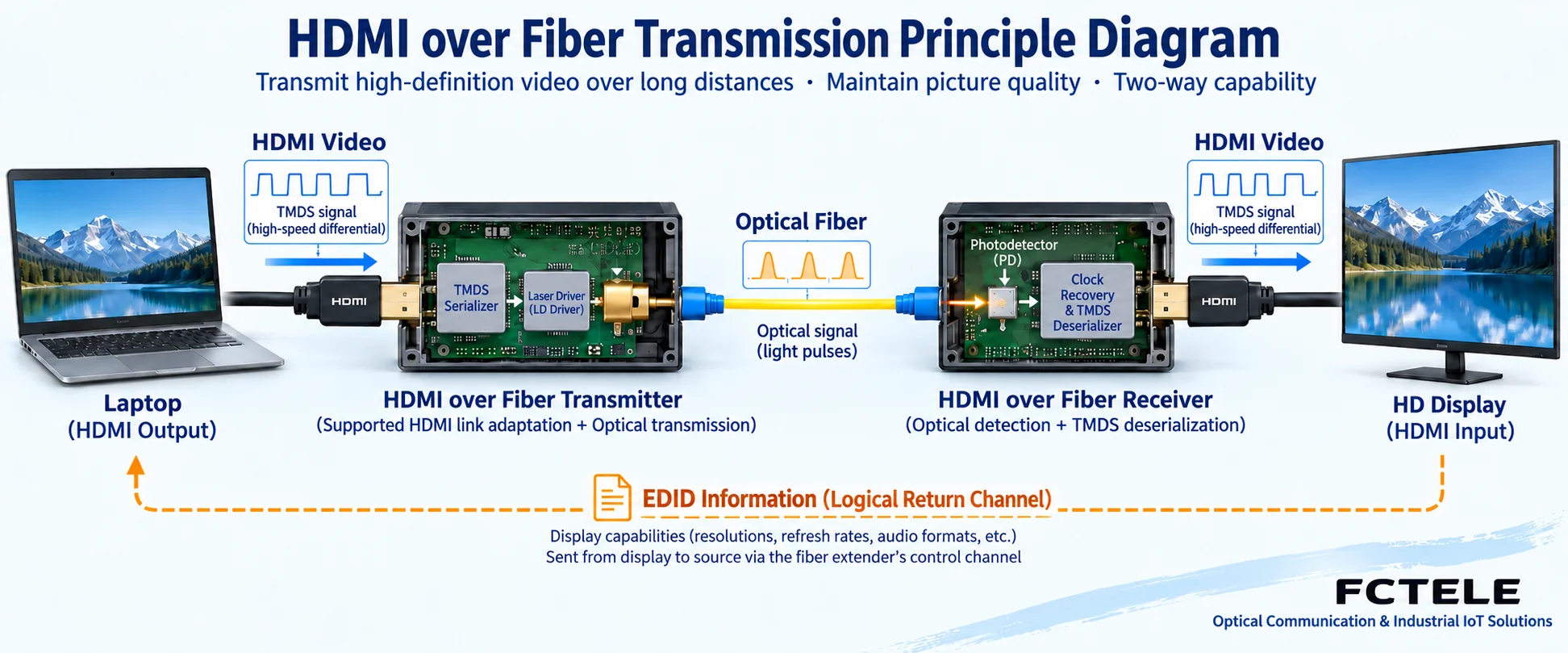
A computer or player sends a signal through an HDMI transmitter, optical fiber and receiver to a display. This is a video path with multiple conditions. If any point lacks power, has the wrong port direction, does not support the format, or fails negotiation, the screen may go black. The first troubleshooting step is to record the source device, the two transmission devices, the display model and the current mode, so that all abnormalities are not lumped together as “the fiber is broken.”
HDMI differs from traditional CVBS analog video, SDI and IP network video. Its connector and control mechanisms follow clear rules. You cannot use the experience of pulling a fiber from analog video and seeing snow to judge an HDMI receiver. Black screen, occasional flickering, audio interruption or a particular program failing to play may each come from different stages. First write down the conditions under which the problem occurs, then run a test that changes only one item.
The video path carries data; the negotiation path conveys capabilities
HDMI transmits digital video and audio. The specific data carried and the rate depend on the interface version, video format and product implementation. Beyond resolution, you also need to look at refresh rate, chroma sampling, bit depth and HDR conditions. A transmission device stating that it supports a certain resolution does not automatically prove that all modes at that same resolution are usable, and you certainly cannot assume that different devices use the same generation of internal transmission mechanism.
After video enters the transmitter, it is sent to the far end by the processing and optical transmission structure supported by the device, and the receiver then provides the corresponding HDMI output. It does not scale the picture by default, nor does it by default reduce a high-bandwidth mode to a transmittable mode. Both ends need to be a compatible combination. An ordinary Ethernet transceiver, even with a similar optical port, cannot replace an HDMI receiver. The circuit in the figure is a general functional illustration, not a teardown of a specific product.
EDID tells the source what the display can accept
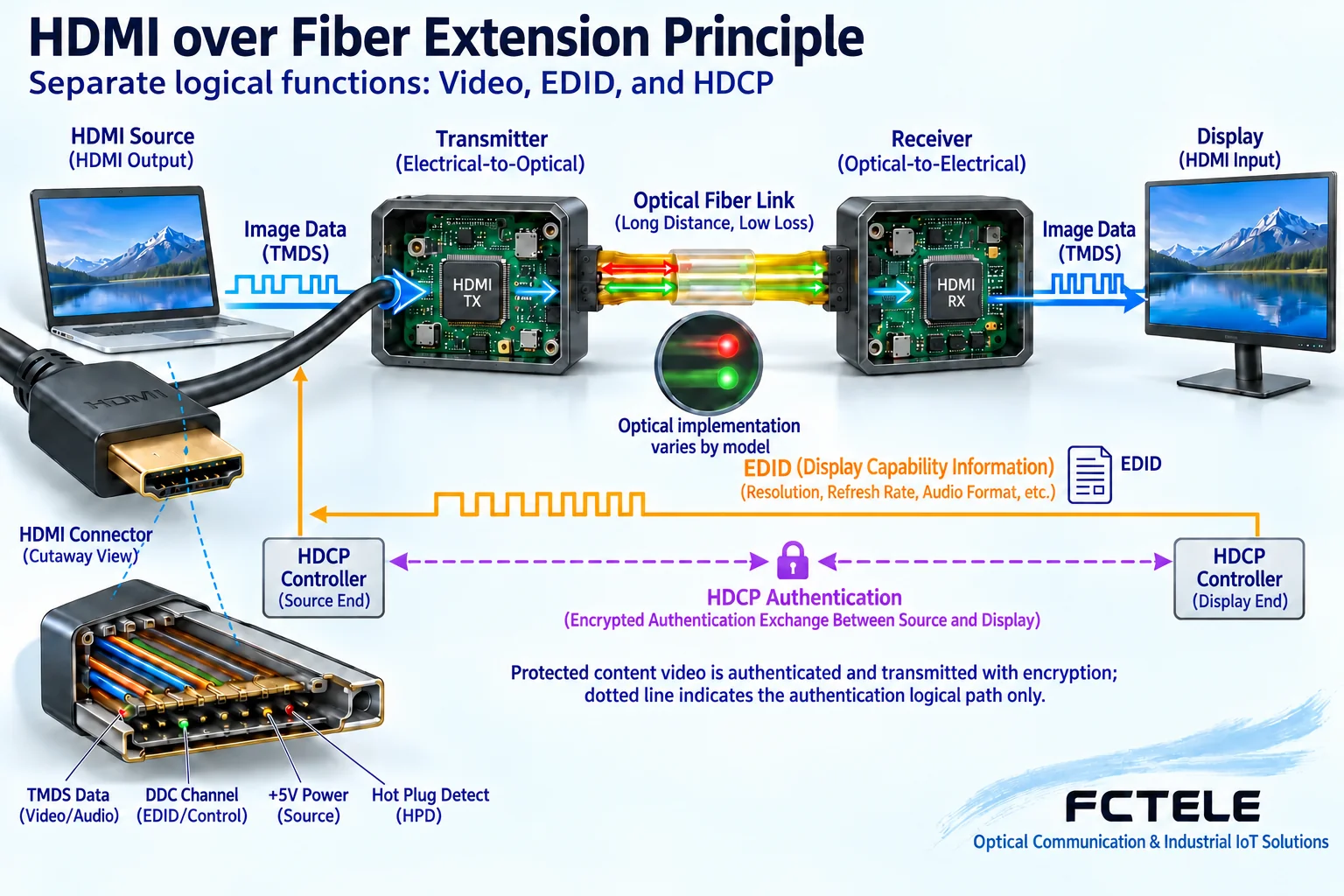
EDID is capability data provided by the display device. It helps the source decide which modes it can output. The source device reads this information through mechanisms such as the display data channel. An optical extender may forward, cache or provide preset EDID, and the specific method depends on the model. If the display is changed but the source still retains the old capability information, it may output a format the new display does not accept.
Capability negotiation information returns from the display end to the source end, which is a different logical direction from the picture mainly being sent from the source end to the display end. Reading the capability does not prove that high-speed video data can definitely pass through, and seeing an optical connection status does not prove that EDID is correct. Check the read, learn or preset functions in the device manual and record the current selection. For models without these functions, you should not search for a configuration menu out of thin air or blindly write data downloaded from the internet.
HDCP and EDID serve different tasks
HDCP is the authentication mechanism for the corresponding protected digital content link, while EDID describes display capabilities. Both may affect whether playback is possible, but they are not the same setting. Sometimes the desktop can be displayed while a particular protected program shows a black screen. In that case, check the authentication compatibility and current status of the source, extender and display, rather than assuming that resolution and optical power already explain the whole problem.
Transmission devices need to match their declared role and support conditions. You cannot treat another company’s product’s HDCP capability as a capability of a Feichang Technology model, nor can you claim that changing a fiber bypasses content protection. For testing, a known signal that is allowed to play can be used to distinguish the video path from a protection problem, but the actual service still has to be verified in the end. The goal of diagnosis is to locate normal compatibility conditions, not to cancel or circumvent authentication requirements.
Why bandwidth boundaries appear as flickering or black screen at high specifications
Suppose the basic mode remains normal, and flickering appears only after switching to a higher refresh rate or a larger amount of color data. Then format support and signal margin should be listed as inspection directions. The near-end HDMI cable, connector, source output, transmitter and receiver devices, and display are all part of the link. Fiber only extends one segment of it and cannot repair data that is already wrong at the source or an unsuitable interface combination.
Establish a baseline in a mode the device explicitly supports, then step up item by item to the required mode, and save the state before and after the change. Lowering the mode is only for locating the problem; it does not mean that a degraded result can be accepted as passing the original requirement. If the product supports specific compression, color conversion or scaling, the enabling conditions should be made clear. If the documentation does not state it, do not guess for a black screen that a device must have a certain automatic conversion function.
How the Feichang Technology HDMI series corresponds to on-site needs
The Feichang Technology FCM-H1-4k2 product documentation explicitly lists support items such as HDMI 2.0, 4K 60Hz, real-time EDID return and HDCP 1.4/2.2. EDID return corresponds to the need for display capabilities to return from the far end to the source. HDCP support still needs to be verified with the actual source and display combination. Purchasing should still check the exact model version, input and output formats, audio, ordered optical port and power supply, and should not infer from the 4K name that all color formats and bit depths are usable.
For a specific HDMI product, you also need to confirm with the manufacturer whether EDID management, HDCP and control return are supported. You cannot infer all capabilities from a name in the same series. The required distance should be confirmed together with the ordered optical module, fiber type, connector and allowed receive range. The same optical port does not mean the same dedicated transmission protocol. Matching usage requirements and firmware versions should also be kept in the delivery record.
A troubleshooting sequence that adds evidence step by step
First connect the source device directly to the display with a known-good short HDMI cable, and confirm that the actual mode can display and produce sound normally. Then add the matching optical transceiver and a suitable short patch fiber, and check the power, port direction and current status at both ends. If the short link also fails, check the format, display negotiation and device combination first, and do not rush to dismantle the installed optical cable.
After the short link works, keep both ends and the video source unchanged, then connect the installed fiber core. At this point, record the optical port pairing, endface condition, loss and received power. Too weak power or exceeding the upper limit can both cause abnormalities, and you should not simply keep increasing transmit power. Perform endface inspection and cleaning according to the manual, and never look directly into the optical output port. Whether the device allows hot plugging should also follow the instructions; do not equate being able to pull it out with being suitable for live operation.
Divide abnormalities into picture, sound and recovery
When there is a picture but no sound, confirm the source audio output method, the display capability and the audio formats supported by the extender. Do not immediately conclude that the optical receiver is broken. When colors are abnormal, record the color format and bit depth, and first compare with a local direct connection, to avoid confusing display processing with transmission problems. When keyboard, mouse, serial or infrared return is needed, check the corresponding channel independently. The presence of video does not prove that all additional interfaces are normal.
For intermittent faults, record the time of occurrence, source mode changes, device power and temperature status, and the meaning of indicator lights. Within the allowed maintenance window, separately test source restart, display restart and power recovery, and save the symptoms. Indicator lights are status indications defined by the manufacturer. You cannot infer from another model’s light name that this unit has completed video output or authentication. Change only one factor at a time so that the result can be used to narrow the scope.
Acceptance should use the playback conditions actually needed
Before delivery, use the actual source, actual display and installed optical path to verify the agreed modes, covering moving pictures, sound, continuous operation and allowed recovery operations. When protected content needs to be played, also verify the corresponding link conditions. Displaying only the desktop or a test pattern cannot replace all services. Save the model version, mode, EDID policy, optical path measurements and exception handling as a ledger.
After understanding this link, the reader should be able to break a black screen into four questions: whether the source outputs the correct format, whether display capability and authentication match, whether the intermediate transmission combination supports it, and whether the optical path and power meet the conditions. In this way, troubleshooting can produce a verifiable cause, instead of directly applying analog video experience to HDMI and then using repeated restarts to cover up compatibility or link boundaries.
Documentation note: The principle diagrams have been checked against technical content and are used to explain general mechanisms. They are not physical product photos or measured records. Specific interfaces, modes and capabilities are subject to the selected model, version and on-site verification.
Verification materials: Feichang Technology FCM-H1-4k2 HDMI product documentation
Extron HDMI fiber extender user manual: EDID and HDCP
Translated from the Chinese technical article. Source first published: 2019-10-28. Source last revised: 2026-10-13T13:28:52+08:00. Read the Chinese source
