


First determine which segment the conference room actually needs to extend
The computer is far from the large screen, and you want to send the presentation image to the screen; the camera is far from the conference computer, and you want the computer to recognize the camera; two locations need internet conferencing, and you want participants to communicate with each other. All three needs involve video, but they are not the same optical transceiver task. Before planning, write down the source device, receiving device, and application, and determine which interface truly crosses the distance.
HDMI output mainly serves the display path, a USB camera needs a compatible USB connection, and network conferencing also needs a platform, account, and network service. An ordinary video optical transceiver cannot, just by its name, generate an internet session, solve echo, or translate all interfaces. A system diagram that shows which device handles each segment is easier to turn into equipment and budget than writing ‘conference HD remote transmission.’
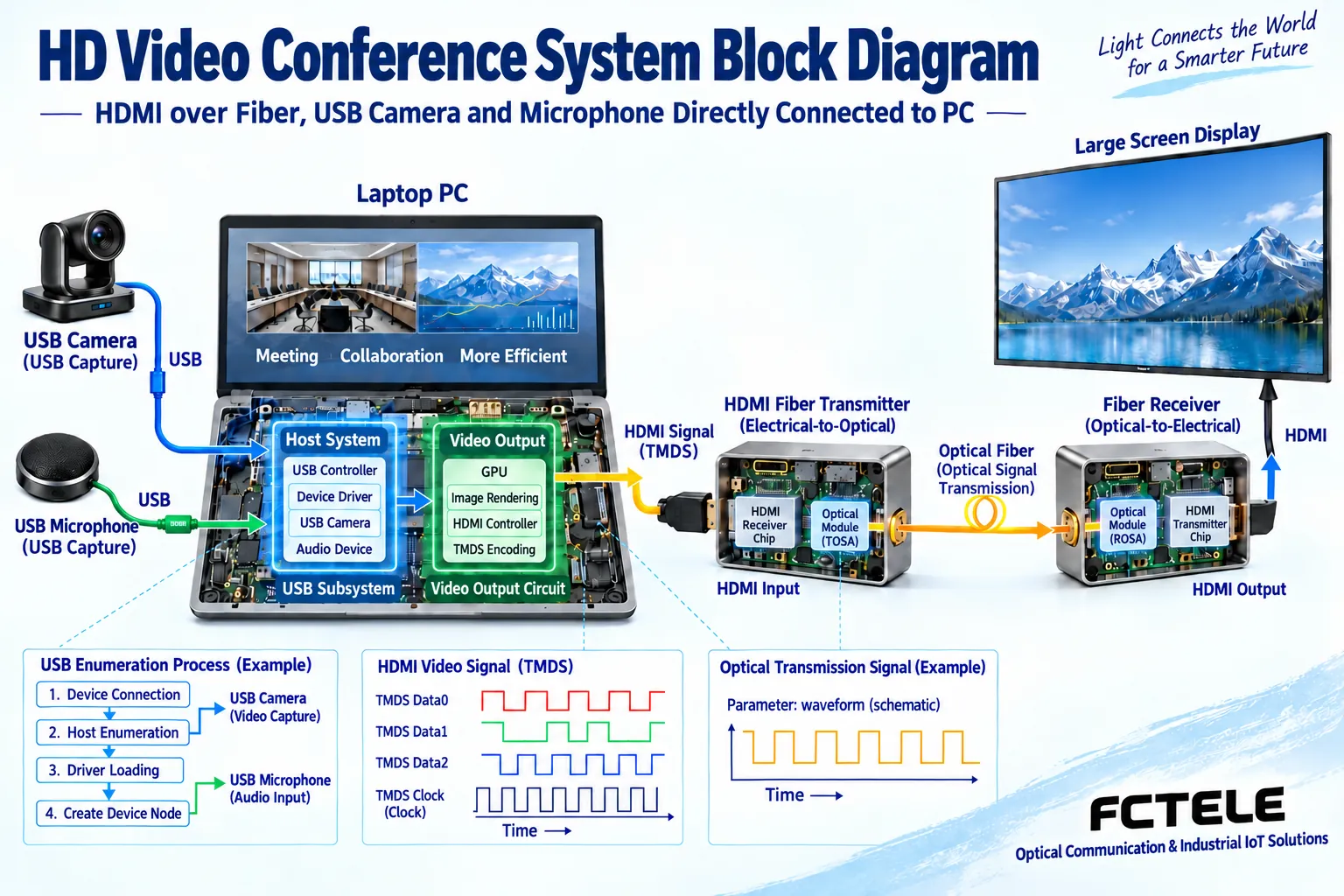
HDMI display link from computer to screen
The computer outputs the corresponding audio and video through HDMI, the transmitter sends the signal into the optical link according to its supported mechanism, and the receiver then provides HDMI output. The monitor still receives video in the specified format, not a conference message that any network device can directly forward. Whether the optical extender compresses, converts color, or scales all needs to be stated for the corresponding model.
In addition to source resolution and refresh rate, also check bit depth, color format, and required audio. EDID helps the computer understand the screen’s supported conditions, and HDCP affects authentication of the corresponding protected content. A normal optical path does not prove that negotiation and format fully match; being able to display the desktop before a meeting also does not mean that higher specifications or special playback conditions have been verified. If reverse image is needed, confirm bidirectional video capability separately.
A USB camera cannot directly borrow the HDMI port
A USB camera is recognized by the computer as host and exchanges data, involving device enumeration, the corresponding USB transfer, and application drivers. The direction and processing method of an HDMI display connection are different; it is not possible to connect a camera USB plug to an HDMI optical transceiver just by changing the connector. Even if a box has both types of ports, check the function and supported devices of each interface type.
Some products only extend HID peripherals such as keyboard and mouse. HID is the corresponding human interface device category, and it does not mean any camera video can be transmitted. Other products provide USB 2.0 extension, but you still need to confirm the actual device type, bandwidth, power, and end-to-end compatibility. Multiple peripherals may share resources, and success with one mouse cannot prove that a camera, microphone, and other devices run simultaneously without problems.
IP conferencing organizes communication at the upper layer
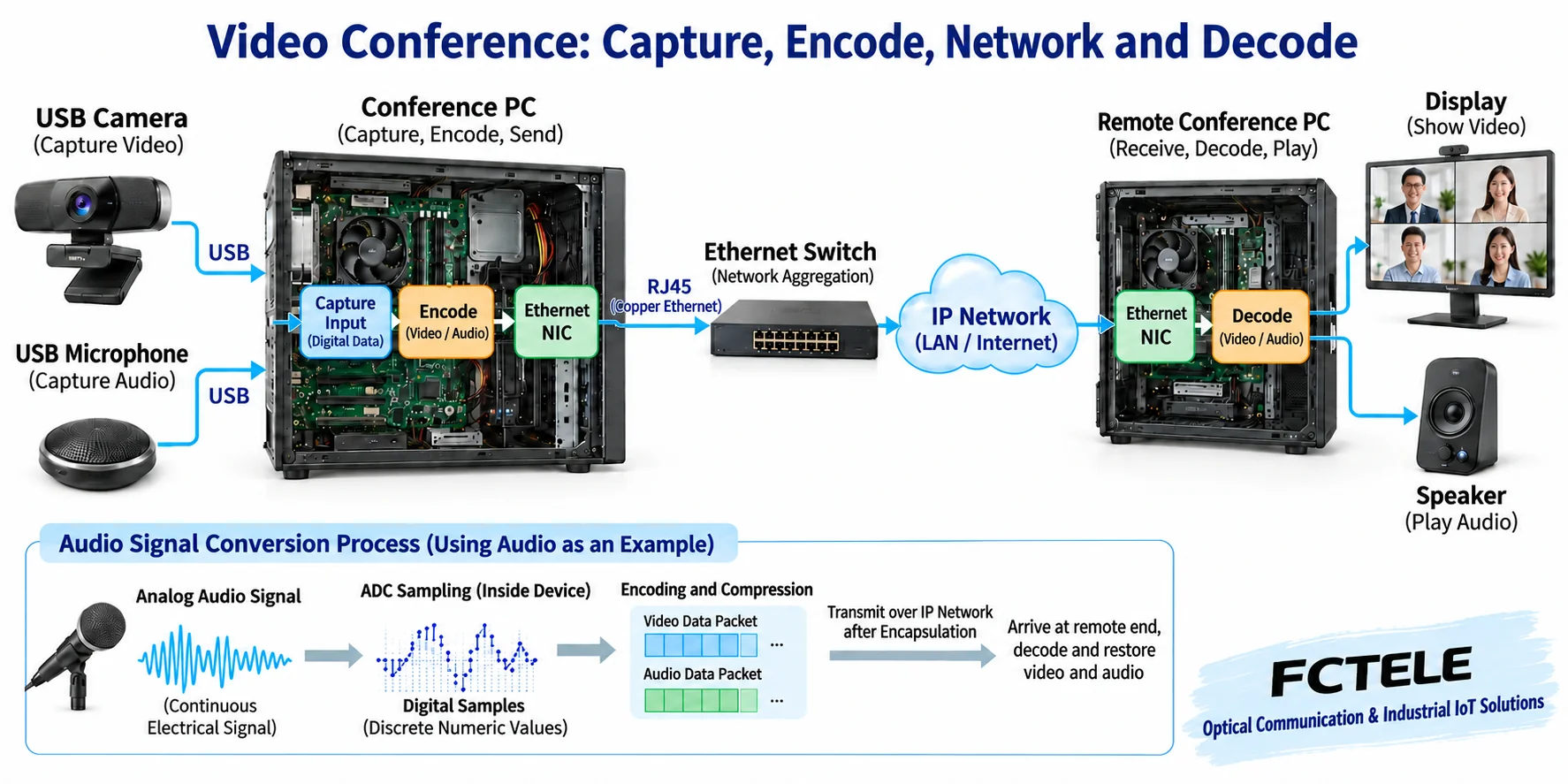
A network conferencing application captures the camera and microphone, performs the corresponding encoding, and sends them to the other end through network communication. The other side then decodes, displays, and plays them. The network path concerns actual bandwidth, latency, packet loss, access conditions, and platform compatibility; local HDMI optical extension is only responsible for the display link and cannot by itself eliminate external network bottlenecks or add conferencing server capacity.
If a device explicitly encodes HDMI into IP network services, design according to that product’s protocol, compression, and matching decoding method, and do not assume that because RJ45 is used it can connect to any network conferencing platform. Transparent optical extension and video encoders are different objects. When both types of devices exist in a system, label the original interfaces and network packets separately to avoid directly treating the nominal HDMI rate as the internet bitrate.
Audio and control also need a complete path
HDMI can carry the corresponding audio, while an independent microphone or speaker may use other interfaces and levels. Conference echo is usually related to pickup, playback, and upper-layer processing, and an optical extender cannot by default replace acoustic design or echo cancellation equipment. When there is image but no sound, first check the computer output selection, display-end capability, and audio device settings.
When touch, RS232 control, or infrared return is needed, list the source, destination, and direction item by item. Transparent serial transmission will not automatically understand the screen control protocol, and a touchscreen does not obtain a correct USB connection just because it sees the HDMI image. Confirm port definitions and peripheral combinations according to the actual model, put each additional task into the acceptance checklist, and do not replace capability evidence with the phrase ‘multi-service.’
How Feichang HDMI products correspond to specific choices
The Feichang FCM-H1-4k2 details list HDMI display extension, EDID return, and related auxiliary interfaces, suitable for checking from the exact video mode and supporting conditions. Another FCM-H1dG1U1 bidirectional HDMI product on the official website lists services such as USB, Ethernet, and independent audio, and notes the conditions for input and output color formats; it cannot be described as unconditionally transparent in all modes.
The two products have different combinations and emphases, and selection should include accurate detail links and the ordered version. The USB interface support scope, conditions for multiple services running simultaneously, and power options must be confirmed in writing. Descriptions such as ‘visual zero latency’ on the page should not be expanded to mean that a complete internet conference has no latency; transmission, capture, encoding, network, and display may still contribute time. The principle diagrams in this article do not identify that a product internally uses a particular chip.
Optical path planning also considers installation and maintenance
First determine where the transmitter and receiver are placed, how both ends are powered, and what fiber type the existing cable is. Connectors, transceiver pairing, wavelength, and loss must match the actual configuration, and received power has upper and lower limits. A short link does not mean any long-distance module is suitable, and excessive input power must also be checked; cabinets, electrical interface protection, and heat dissipation should be designed according to the actual environment.
Fiber does not provide copper-port PoE power to a remote camera or screen. Desktop cabling and cabinet installation also need to leave room for connectors and maintenance, and protect pigtails from pulling and tight bending. Labels must distinguish HDMI, USB, Ethernet, and dedicated optical ports, and do not try connections between unknown ports just for plug convenience. Use suitable tools for optical port inspection and cleaning, and never look directly at a fiber core that may be operating.
Commission item by item first, then simulate a complete meeting
First use a short cable to confirm the required mode between the computer and monitor, then add the matching optical transceiver and a short fiber, and finally connect the installed cable route. Check USB peripherals independently to see whether the computer recognizes them, whether capture works normally, and how they perform over continuous operation. For network conferencing, separately perform an actual platform communication test, record sound, image, screen sharing, and remote interaction, and distinguish faults in local transmission from those in the network application.
Then let the planned image, audio, camera, and control run simultaneously, covering real usage. Test restarting the source or display end and the permitted power recovery, and save the mode, configuration, and recovery behavior. Plug and unplug only under the conditions allowed by the device instructions, and do not look for accidental success by replacing all components at once. When an abnormality occurs, change one condition at a time and keep a normal baseline and logs.
Delivery clearly states who is responsible for each function
Delivery documents include source devices and display devices, peripheral types, optical device versions at both ends, video formats, USB and control paths, optical path measurements, and test results. The receiving party should be able to restore the connections according to the diagram and know which resources and compatibility conditions need to be rechecked after changing the monitor, adding a camera, or upgrading the video mode.
The value of conference room optical transmission is to extend connections on clearly supported interfaces and maintain a serviceable path. HDMI images, USB peripherals, and IP sessions can work together, but each has its own processing layer. Only by planning these three objects clearly can you choose products that truly meet the site and prove system usability with actual meeting experience and item-by-item evidence.
Documentation note: The principle diagrams have been checked against technical content and are used to explain general mechanisms; they are not product photos or measured records. Specific interfaces, modes, and capabilities are subject to the selected model, version, and on-site verification.
Verification materials: Feichang FCM-H1-4k2 HDMI product information
Feichang FCM-H1dG1U1 multi-service product information
Extron HDMI fiber extender user manual: EDID and HDCP
Translated from the Chinese technical article. Source first published: 2023-11-22. Source last revised: 2026-10-13T11:52:05+08:00. Read the Chinese source
